How to Edit a Teams Recording: What Microsoft Offers and How to Cut the Video Yourself
Can You Edit a Teams Recording?
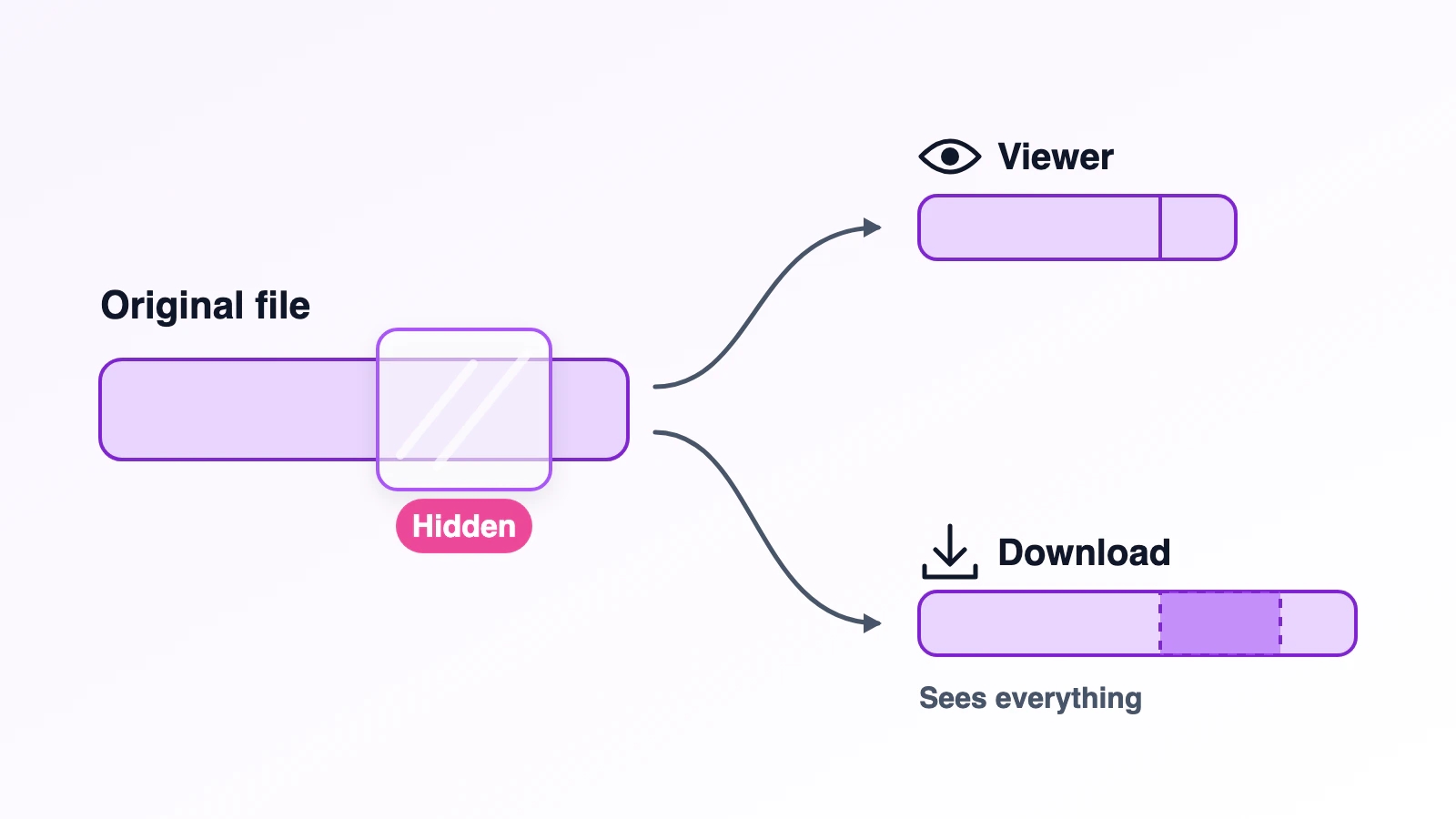
Yes. Microsoft documents trimming in its video player, which hides parts from viewers but leaves the file unchanged. To cut the video for good, the organizer downloads the file and you trim it in your browser.
Your Teams meeting recording opens on a few minutes of people joining and checking their mics. That is the part you want gone before you share it.
At the time of writing, the choice depends on what you need:
- Trim in the video player when viewers only need to skip the dead air, and your organization has turned the feature on. The file itself stays complete.
- Download and cut the file when a passage must really go, or when you share it outside Microsoft Teams.
Where Teams Recordings Are Saved, and Who Can Download Them
Microsoft Support gives two locations, depending on the meeting:
- A meeting outside a channel: the organizer's OneDrive for Business.
- A channel meeting: the channel's SharePoint site.
Only the Teams meeting organizer can download the file. In a channel meeting, Microsoft says everyone in the channel has permission to edit and view the recording. In other meetings, only the organizer and co-organizers can edit it. Other participants can view the recording but cannot download it.
What Trimming in Microsoft's Video Player Does
Microsoft's video player is the one that opens when you launch a video in OneDrive, SharePoint and other Microsoft 365 apps. Microsoft names Teams meeting recordings as a typical use for its trim tool.
Trimming in the video player works by hiding: the parts you trim disappear for viewers when they play the video. The original file does not change. People with edit access, and anyone who downloads it, still see everything.
Microsoft's instructions for trimming videos add two limits. The feature works only if your Microsoft 365 organization has enabled it, and only for users with edit access. You can hide at most 5 parts.
- Open the recording in the video player and select Edit.
- Open the Trim panel on the right.
- Drag the trim handles to set the start and the end. To hide a passage in the middle, select + New cut and drag its handles.
- Select the check mark to save.
Hiding is not deleting. Microsoft adds that the trimmed parts of the transcript and chapters are still available to Microsoft Search and Copilot. If a passage must not leave the meeting, like a password on screen, it needs real editing, on a downloaded copy. For deeper editing, Microsoft points to its own video editor.
Cutting a downloaded copy leaves the original in OneDrive or SharePoint. To replace it, upload the new file to the same folder with the exact same name and extension. OneDrive and SharePoint then ask whether to Replace the original or Keep both: choose Replace.
How to Edit Teams Recordings After You Download Them
Once the organizer has the file, the editing happens on your own device, in vidmini's browser tools. Nothing is uploaded, and there is no account and no watermark, which matters for an internal meeting.
- Open the trim tool and cut the start and end of the video in your browser with the two sliders.
- Leave fast mode on for a lossless cut (same quality as the original). Its start snaps back to the previous key frame (a full image stored every so often), so the clip may begin slightly early. Check "Frame-accurate cut" to start on the exact frame; it re-encodes the clip, which slightly changes the image.
- For a passage in the middle, trim twice to keep the part before and the part after. Check "Frame-accurate cut" for the second part, because fast mode can start it early, inside the passage you want gone. Then use the merge tool to join them, and you get one clip without the passage. The merge tool joins clips without re-encoding only when their settings match. The second part was re-encoded, so the two may not match. In that case the tool re-encodes both into one MP4 (H.264 video, AAC audio), with a small loss in quality.
- Use the silence tool to remove silence from the video automatically. It measures loudness, not words, so it keeps the "um"s. A constant noise like a fan can prevent cuts; if so, try a higher "Silence level".
The trimmed file keeps the format of the source, so an MP4 stays an MP4. Still too big to share? "Continue with this file" sends it to the compressor.