How to Record Google Meet (and Find the Recording in Drive)
How to record Google Meet with its built-in recording
Google Meet records a meeting only on an eligible plan, such as Google Workspace Business Standard, and only if the host has permission to record. Then you start it from the Meeting tools menu, and the file goes to Google Drive. Without that, record your screen instead: on a Mac, press Shift-Command-5.
Here are the steps Google gives for a computer:
- Open the meeting in Google Meet and click Join (or Start).
- At the bottom right, click Meeting tools, then Recording.
- Click Start recording, then Start in the pop-up.
- To stop, open Meeting tools again, click Recording, then Stop recording.
Everyone in the call gets a notification when the recording starts and when it stops. The recording also ends by itself when everyone leaves, or after 8 hours.
The video shows the active speaker and whatever is presented, not your other windows or notifications. When someone shares a screen, the recording goes up to 1080p. This built-in approach to recording Google Meet works on a computer or an Android device.
Why can't you record a Google Meet? Plan, admin and host
When the Recording option isn't there, check these four conditions.
The edition. At the time of writing, Google's list includes Business Standard, Business Plus, Essentials and the Enterprise editions. It also covers Education Plus (staff licenses), Workspace Individual and Google One with 2 TB of storage or more.
A free personal Google account isn't on it. The list changes, so check it in Google's help page on recording video meetings.
The admin. On a work or school account, a Workspace administrator has to turn on recording for your account. Only they can enable recording for Google Meet, so ask them if the recording feature never appears.
The host. As a participant, you're able to record only if the host has permission to record. Your own permissions are not enough when the host lacks them. From outside the host's organization, you can record once the host makes you a co-host.
Storage. Recordings upload to the organizer's Drive, so it needs free space. Google also asks you to check that your own Drive and your organization haven't reached their storage quota: if the organization is out of space, you can't record.
Last trap: you can't record if you joined only to present. Join the call first, then present, then record.
Where do Google Meet recordings go? Find the Meet recording in Google Drive
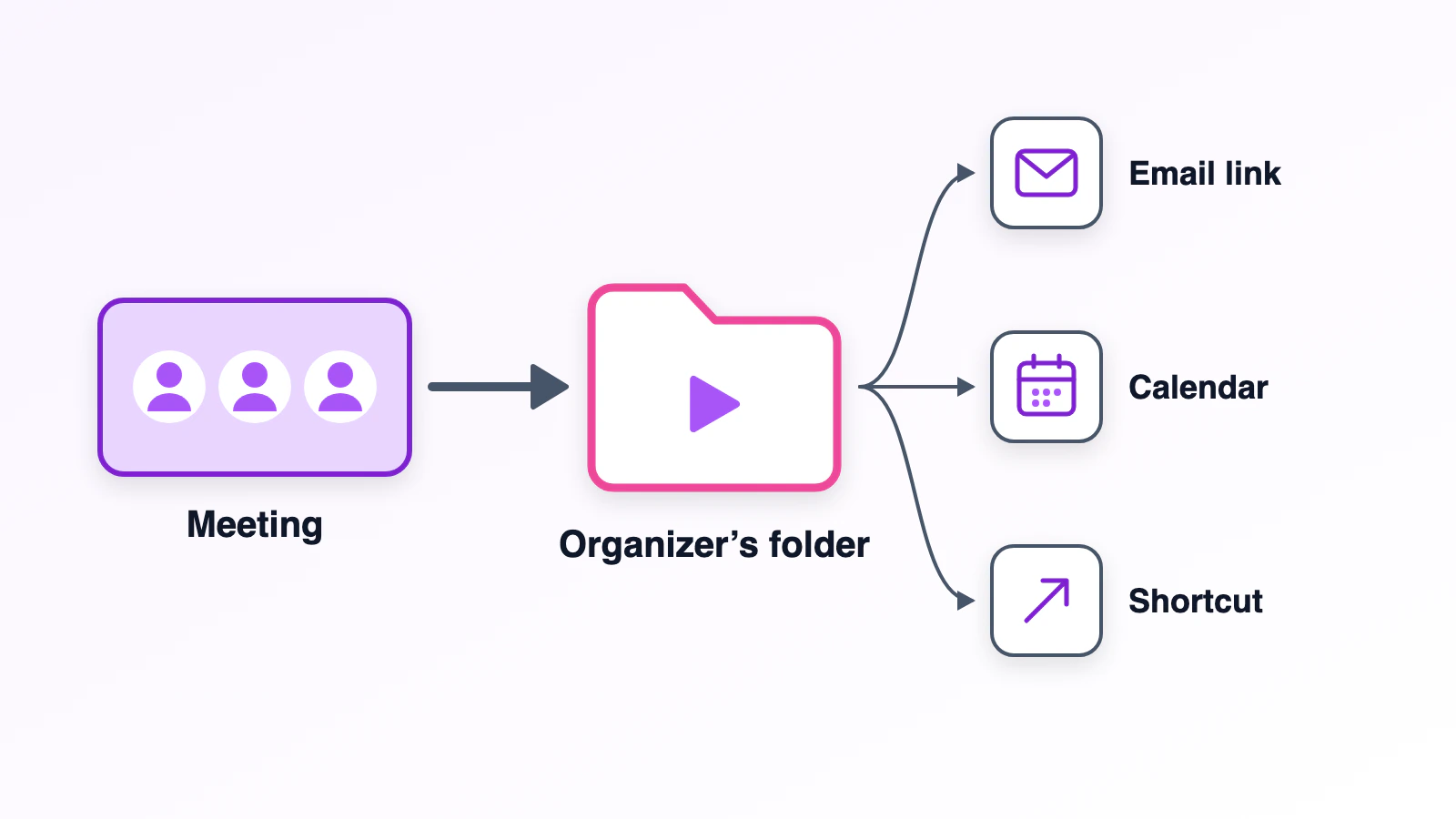
Every Google Meet recording in Google Drive lands in the Drive of the meeting organizer, in a folder called "Google Meet". Inside it, Meet creates one sub-folder per meeting. The organizer is whoever created the event in Google Calendar, or whoever launched the call from the Meet homepage or Gmail.
The file stays there even when someone else clicked Start recording. Three things point to it:
- An email with the recording link goes to the organizer and to the person who started the recording.
- The link is added to the Google Calendar event, if the recording starts at the scheduled time.
- Attendees get a shortcut to the file in their own Drive.
Older recordings were in a "Meet Recordings" folder. Starting in July 2026, Google renames it "Legacy Meet Recordings" and moves it inside the Google Meet folder. Old links still work.
Right after the call, a new Meet recording in Google Drive may show "Still processing" until the video is ready. Save Google Meet recordings to your computer from Drive: select the file, click More, then Download. To find it again later in your own Drive, use Add to My Drive.
No recording option? Record Google Meet on a Mac with the screen recorder
If the admin or the host turned recording off, that's a decision about this call. Recording your screen doesn't change that, and the consent point below applies here too.
To record Google Meet without the built-in feature, macOS has its own screen recorder. The shortcut is the same on a Mac laptop or desktop:
- Join the call, then press Shift-Command-5 to open the Screenshot toolbar.
- Choose Record Entire Screen or Record Selected Portion. On macOS Tahoe 26 or later, Record Selected Window captures just the browser window running Meet.
- Click Options and choose a microphone, so your voice is in the video.
- Click Record. To stop, click the Stop button in the menu bar or press Command-Control-Esc.
By default, macOS saves the file to your desktop as a .mov file. The "Save to" setting in Options changes the folder.
You can also record using QuickTime Player: File, then New Screen Recording. On some Macs, it opens the same Screenshot toolbar.
How to get the other participants' audio into a Mac screen recording
The microphone records your voice. The other people's voices come out of your Mac as system audio (the sound your computer plays). Whether the screen recorder captures that sound depends on your version of macOS.
Apple's screen recording guide lists an Include System Audio option in Options only on macOS 27 Golden Gate or later. Earlier versions show no such option in Apple's guide. Guides elsewhere on the web suggest a virtual audio driver; we haven't tested one, so we don't recommend any.
If the built-in recording is available to you, use it. Meet records the call itself and saves it to Drive. On macOS Sequoia, Chrome asks for screen and system audio access the first time you record: click Allow.
Tell the participants before you record
Meet sends its own notice when its recording starts or stops. An admin can also require each participant to give consent before recording begins. That setting is off by default.
That notice covers Meet's recording, not a recording you make with your Mac. Say it yourself: in the calendar event, or out loud at the start of the call. People who don't want to be recorded can then turn off their camera or leave.
The rules on when you can record meetings vary by country and by employer. We give no legal advice here. Asking first is the simple habit that works everywhere.
Can you record Google Meet on a phone or on Windows?
On a phone, Google lists Android as a device that can record. iPhone isn't on that list.
On a Windows computer, the built-in recording works as described above, since it runs in Meet itself. Without it, there are other ways to record: OBS, browser extensions, apps sold as a recorder for Google Meet.
We haven't tested that recording software, so we give no steps. The host's permission and the participants' consent still apply.
Can you edit a Google Meet recording? Trim the start and end, blur a name
Yes. Download the file from Drive, or take the .mov from the Mac's screen recorder, and work on that copy.
A recorded call often opens with people waiting to join and closes with goodbyes. You can cut the start and end of your recording in the browser with vidmini's free trim tool.
Its fast mode doesn't re-encode the video (compress it again), so nothing is lost. The cut starts on the nearest key frame before your mark (a full image the video is built from). Frame-exact mode cuts exactly where you set it, and re-encodes.
A recording can show things you didn't plan to share: a face, a name on a shared screen, a document. You can blur faces in your video with face detection that runs on your device. Or you can draw a box over a name.
Detection misses small faces, faces in profile and masked faces, so watch the result before you share it.
Both tools take MP4, MOV, WebM and MKV files. They're free, with no account and no watermark, and nothing is uploaded.
You don't need a full video editor to cut the ends of a call.
For more than the ends, such as a title card or a blurred shared screen, vidmini for Mac lets you describe the edit to your own Claude Code: "cut the wait at the start, blur the shared screen, add a title card." It edits a recording you already have; it doesn't record the call. It needs a Mac with Apple silicon, macOS 26 or later, and Claude Code installed.
When the file is ready, share it or a link to it.