What Is Mail Drop? Send Large Files by Email From iPhone or Mac
What Is Mail Drop on iPhone and Mac?
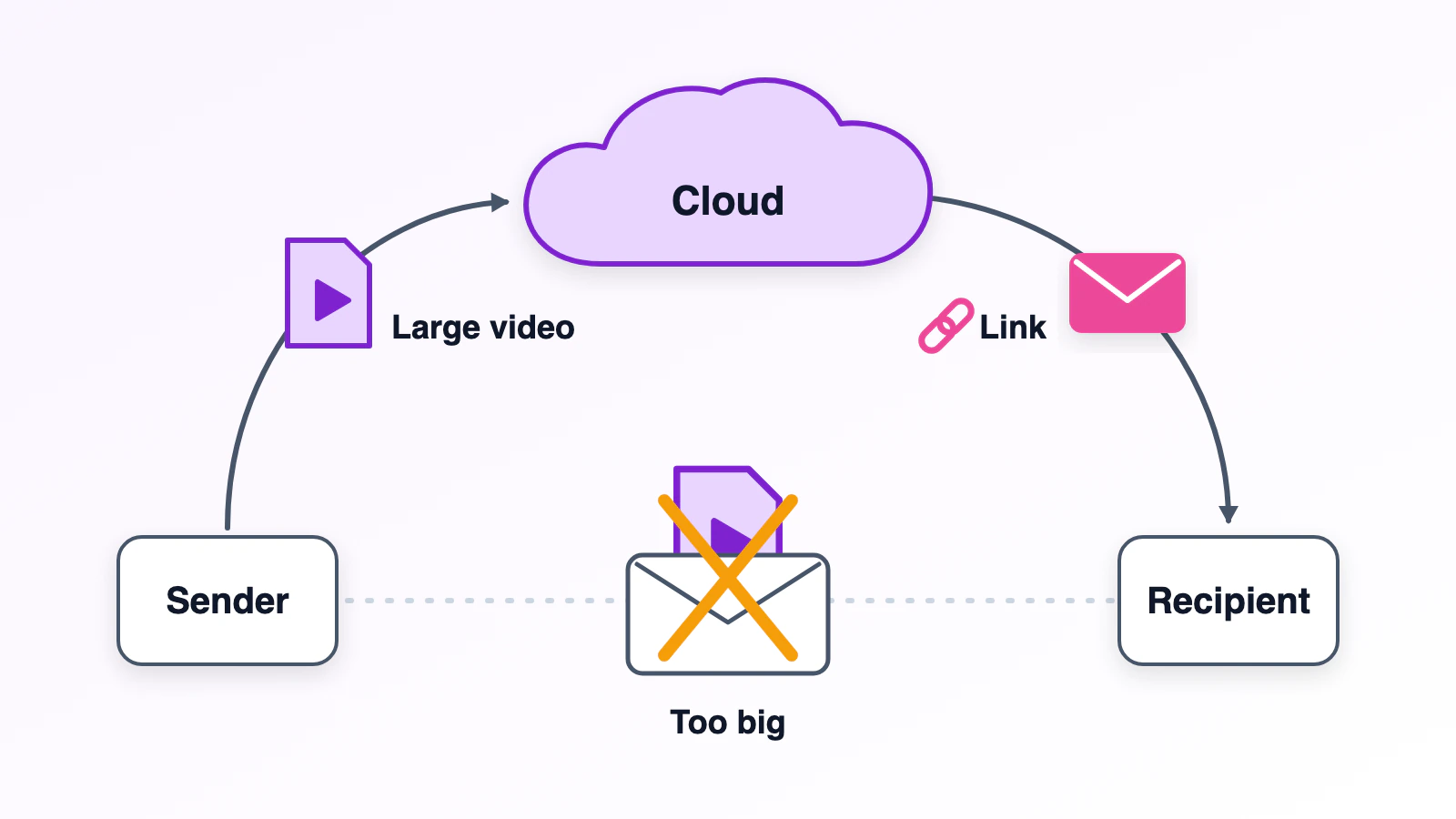
Mail Drop is an Apple feature that lets you send large files, like videos, by email through iCloud. When an attachment is too big for your provider, Mail uploads it there, where it's encrypted and kept for up to 30 days. The recipient downloads it within that window, and one message can carry up to 5 GB.
You attach a three-minute iPhone video to a new message and tap Send. The file is too big for your provider, so Mail asks whether to use Mail Drop to send it instead. It works in Mail on a Mac, in the Mail app on iPhone and iPad, and at iCloud.com/mail in a browser.
Send Large Email Attachments: Apple's Limits and Storage
Apple's Mail Drop limits page (published March 2025, checked November 2026) sets four numbers:
- 5 GB per message. The cap covers the whole email, attachments included. Above it, the page suggests splitting the content across several emails.
- 30 days. That's how long each attachment lasts. The recipient has to download it within that window.
- 1 TB in total. Mail Drop has its own storage limit. Space frees up for new attachments as older ones expire.
- No effect on your storage plan. Mail Drop attachments don't count against your iCloud storage.
All file types are supported. One catch: attaching an uncompressed folder can block Mail Drop, so compress the folder into a single file first.
Apple's Mail guide describes the feature as a way to send files that exceed the maximum size allowed by your email account provider. That provider limit is what triggers the Mail Drop prompt, not the 5 GB cap.
How to Use Mail Drop on iPhone and Mac
You don't turn Mail Drop on for each email. Mail offers it when a message is larger than your provider's limit. What happens next depends on your email account, per the Mail guide for Mac:
- An iCloud account: if you're signed in when you click Send, Mail sends the attachments using Mail Drop automatically.
- Another email provider: Mail asks each time. Select "Don't ask again for this account" to make Mail Drop the default.
Either way, Mail Drop requires being signed in to your Apple Account.
On your Mac, the switch lives in the Mail app:
- Choose Mail > Settings.
- Click Accounts, select the account, then click Account Information.
- Select "Send large attachments with Mail Drop." Deselect it to turn the feature off.
On your iPhone or iPad, open a new message, attach the video and tap Send. If it's over your provider's limit, Mail asks whether to use Mail Drop.
On iCloud.com/mail, the option sits under Settings > Composing: "Use Mail Drop when sending large attachments."
The system requirements are old: OS X Yosemite or later on a Mac, and iOS 9.2 on iPhone, iPad or iPod touch. The guide to sending a large video from iPhone covers Mail Drop alongside AirDrop, iCloud links and a USB cable.
What the Recipient Gets, and Whether They Need iCloud
The recipient sees either an attachment or a Mail Drop link in the email, according to Apple's iCloud User Guide. They have the same 30-day window to download the files.
The Apple pages cited in this article put the account requirement on the sender only. They list no Apple Account or iCloud requirement for the person on the receiving end.
Two things can still get in the way, per the Mail Drop limits page. The recipient's email app may have a smaller size limit that stops the attachment from arriving. And a link that gets an excessive number of downloads or heavy traffic may not open.
How do you know the Mail Drop went out? The Apple pages cited here don't describe a delivery receipt.
Upload time depends on your connection speed and the file size, so a large video can take a while to leave. The simplest check is to ask the recipient whether the download worked.
Want a Normal Attachment? Shrink the Video First
Mail Drop is Apple's feature, not vidmini's. For most big files from a Mac or iPhone, it does the job. But the download link expires, and some recipients want the video itself in their inbox, like a regular attachment.
In that case, compress the video under your email limit before you attach it. vidmini's compressor has a target-size mode: you pick a size in MB, and it shrinks the video to fit. It runs in your browser, so nothing is uploaded, and there's no account and no watermark.
Email providers set their own attachment caps and change them over time. Check the current limit of the recipient's service before you pick a target size.