How to Add a Video in Google Slides From YouTube or Drive
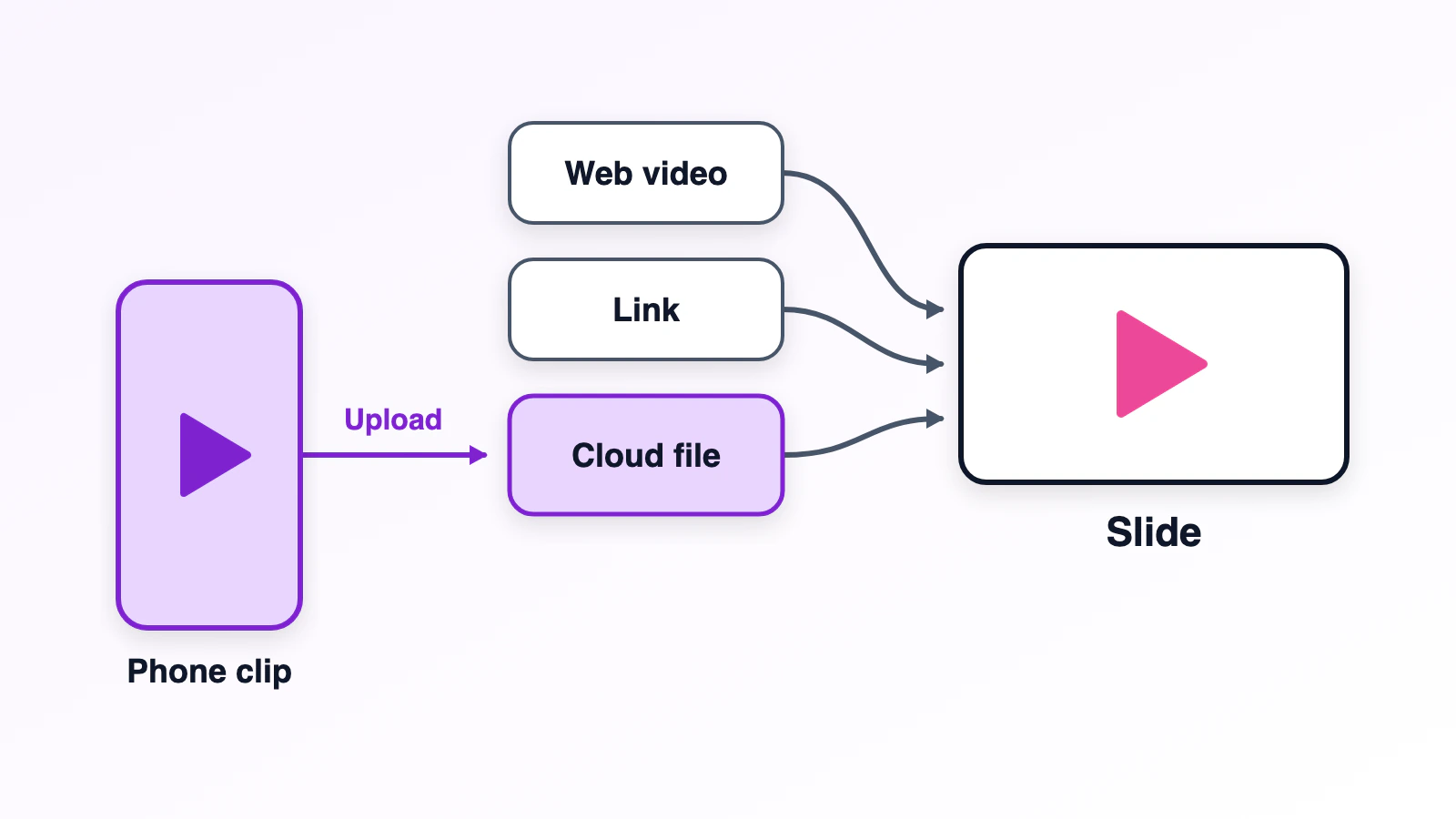
How do you add a video to Google Slides?
In Google Slides, you can add a video in five steps: pick the slide, click Insert > Video, choose a source and select the clip. The source can be a YouTube search, a URL or a file in Google Drive. These steps come from the Google Docs Editors Help page, read in November 2026.
- On your computer, open a presentation in Google Slides.
- Click the slide where you want to add the video.
- Click Insert > Video.
- Select where to get your video from: Search YouTube, By URL, Google Drive.
- Choose the one you want, then click Select.
You add a video to a presentation the same way from every source. Only step 4 changes.
How to put a YouTube video in Google Slides, or a file from Google Drive
Yes, a YouTube video can go in a slide. If you want to embed one, search for it at step 4 or paste its link under By URL.
A file saved on your computer or phone takes one more step. The menu only lists the three sources above, so upload the file to Google Drive first, then pick it there. That includes a clip from your camera roll.
Google Vids takes the same route. In Vids, go to File > Export to Drive, then insert the exported file from Google Drive.
Video playback: play on click, automatically or manually
Select the video on the slide, then click Format options in the toolbar, or right-click it. In the sidebar, under Video playback, choose one of three options:
- Play (on click): playback starts when you advance the slide. This is the default.
- Play (automatically): playback starts without any clicks.
- Play (manual): playback starts only when you click the embedded video itself.
When you present, press any key, click the mouse or use a remote clicker to start it and advance the slide.
Can't embed video in Google Slides? Check the format first
Your phone saved the clip as a .MOV. It's now in Drive, yet it won't insert or won't play in the slide. Before you retry, look at what Google documents.
At the time of writing (November 2026), Google's help page for Slides lists no supported formats and no maximum file size. The Google Drive help page does list the formats Drive plays: WebM, MPEG4, 3GPP, MOV, AVI, MPEGPS, WMV, FLV, MTS and OGG. That is Drive's list, not a Slides rule.
Drive adds two limits. Playback tops out at 1920 × 1080 (1080p), and some video types may not work on every device. An unusual type has to be converted, Drive says.
Size is looser. On Drive, a file can't be bigger than the storage left in your account. Google publishes no size limit for a video inserted in Slides, and the guides we read give figures that don't agree, so we don't quote one.
Two things are worth trying, though neither is a documented fix:
- A MOV that won't play. You can convert your MOV to MP4 in your browser. If the file uses the H.264 codec (the method that compresses the picture), it's copied without re-encoding (no second compression), so no quality is lost. Then add the MP4 to Google Slides with the same five steps.
- A heavy file, or one above 1080p. Compress the file to an exact size and set the maximum resolution to 1080p, the limit of Drive's player. A smaller file also takes less of your Drive storage.
Both tools run in your browser, and nothing is uploaded.
If you're not the one presenting, share the deck. On your computer, open the presentation in Google Slides, click Share and add the presenter as Editor, Commenter or Viewer. Google's help page gives these steps so a presenter can play the videos in a shared presentation.
No check guarantees playback in the slide. Converting and compressing only improve the odds.