For product demos
Make your product demo video by talking to Claude
Bring your screen recording into vidmini, a video editor for Mac. Claude Code sits next to the timeline: say what the demo should show, and it edits the film.
Cut to what matters
A raw recording holds everything, pauses included. Say what stays.
Describe the cut
Cut the pauses, trim this clip, speed up the slow part. Claude Code applies it to the film open in that window, through the same editing tools the app uses.
Zoom on what matters
It can push the image toward an area of a clip at a given moment. The zoom is rendered by the app and shows in the exported file.
One undo step per batch of changes
Everything Claude Code changes in one go is a single step. Undo takes it back, and redo brings it back.
It checks its own work
Claude Code can ask vidmini for a frame of the film at any moment and look at it before telling you it is done.
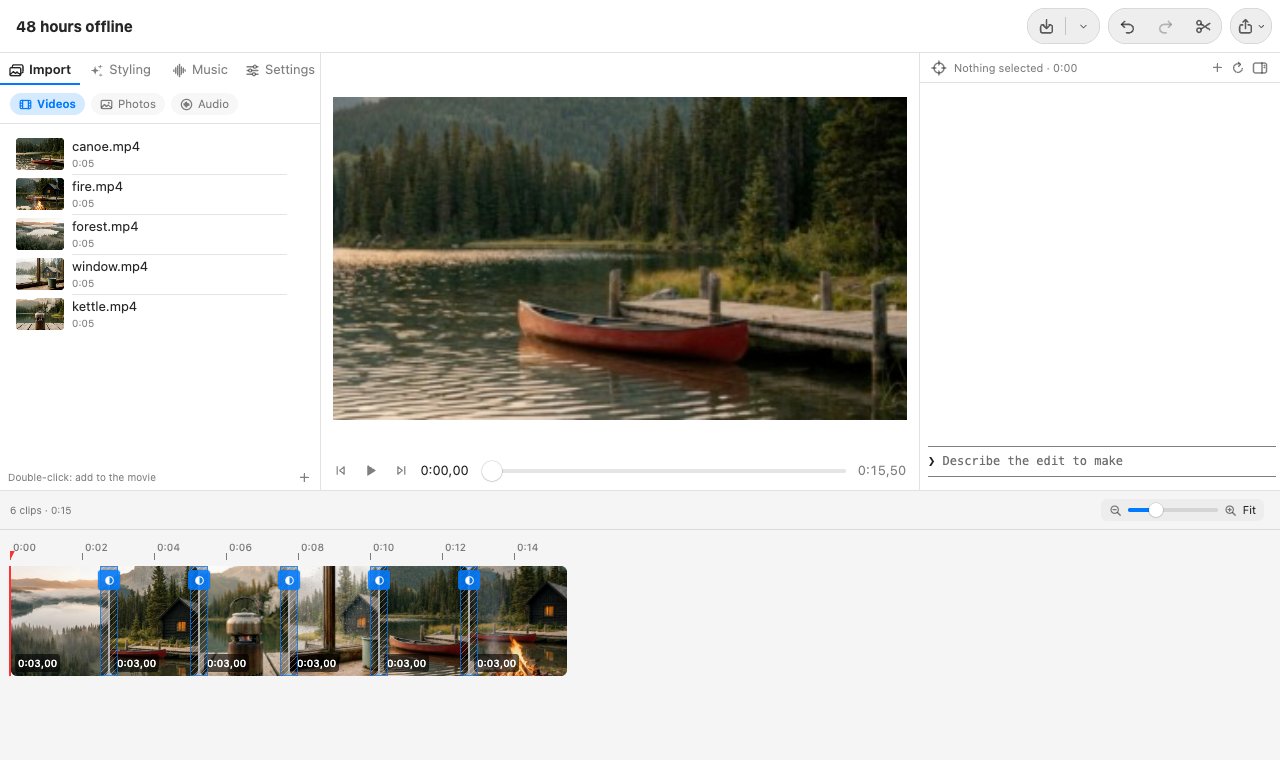
Give the recording a frame
A screen capture fills the picture from edge to edge. A frame gives it room.
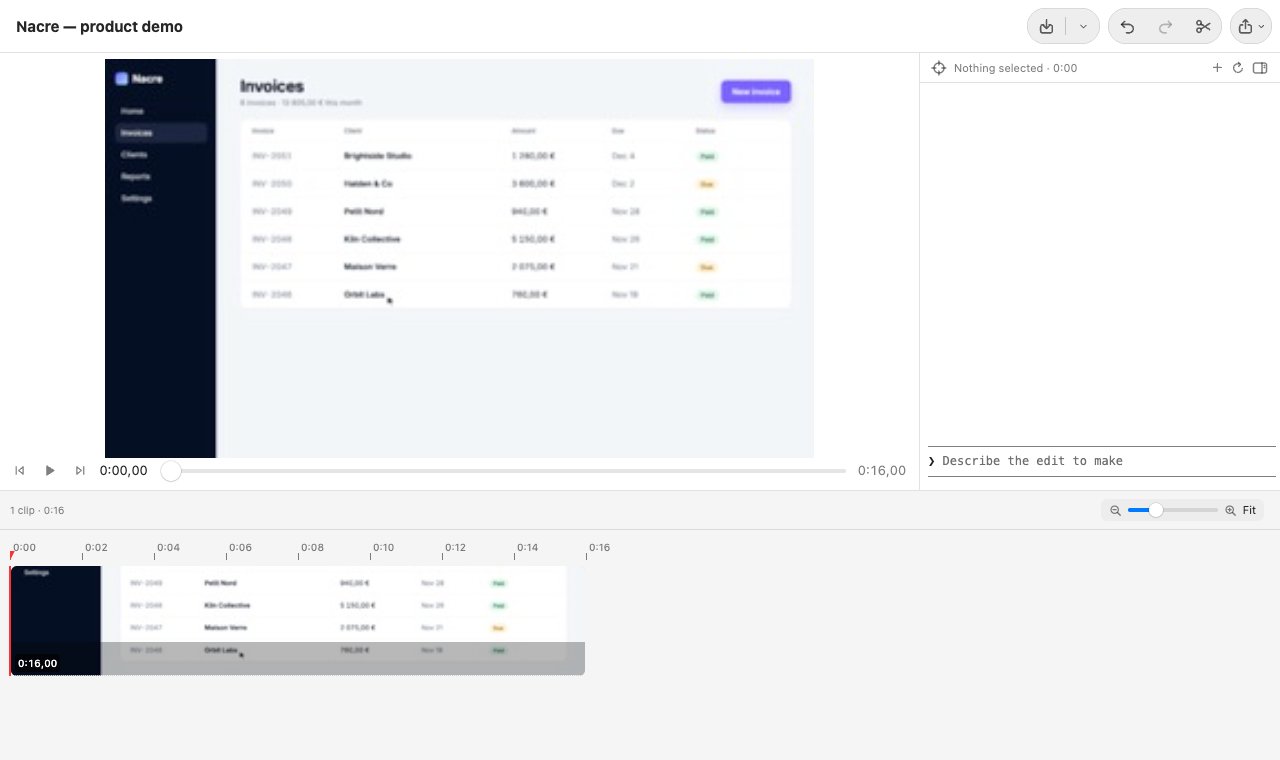
A frame and a background
Put the recording in a frame with a background, rounded corners and a shadow.
Hide what should stay private
Blur or black out what should not be seen.
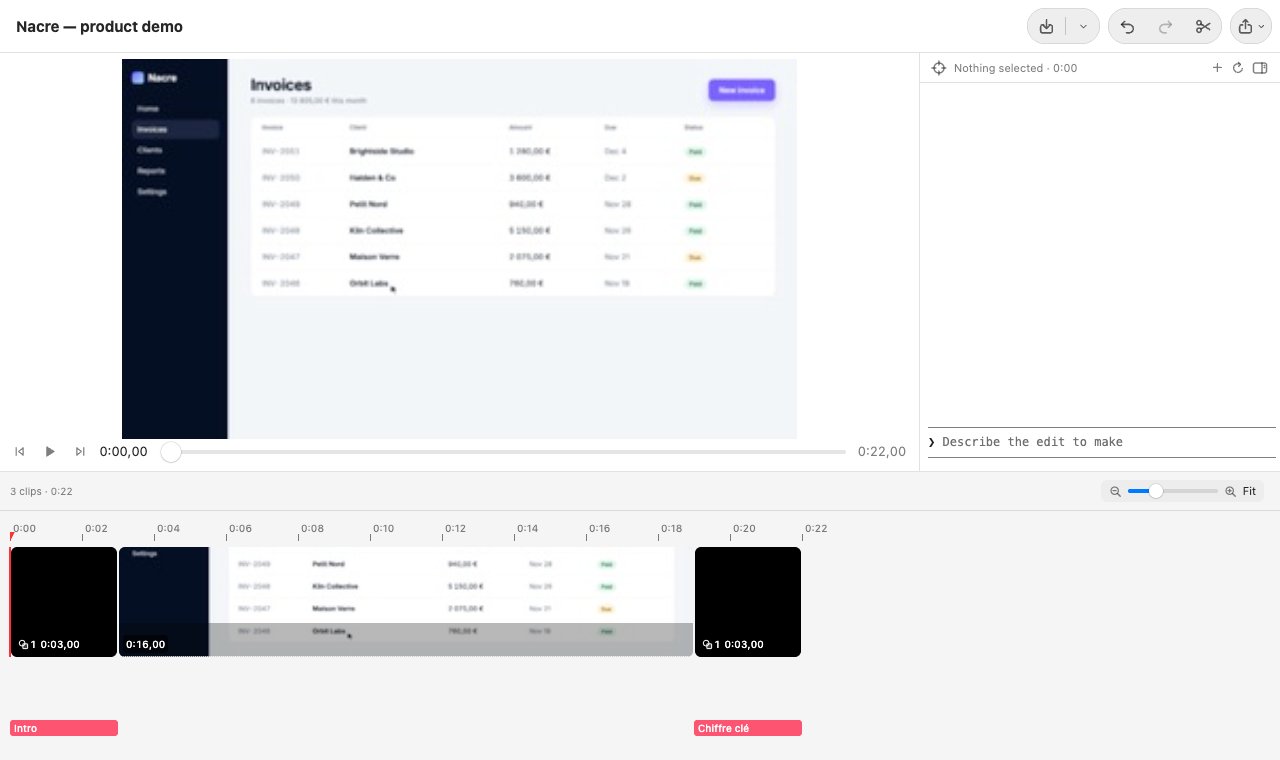
Motion design, written by Claude
Ask for an animated intro or a key figure in your colours. Claude Code adds them to the film as animated scenes, and the app renders them like any other clip.
This demo replays an edit made in the development build of the app, on a real film.
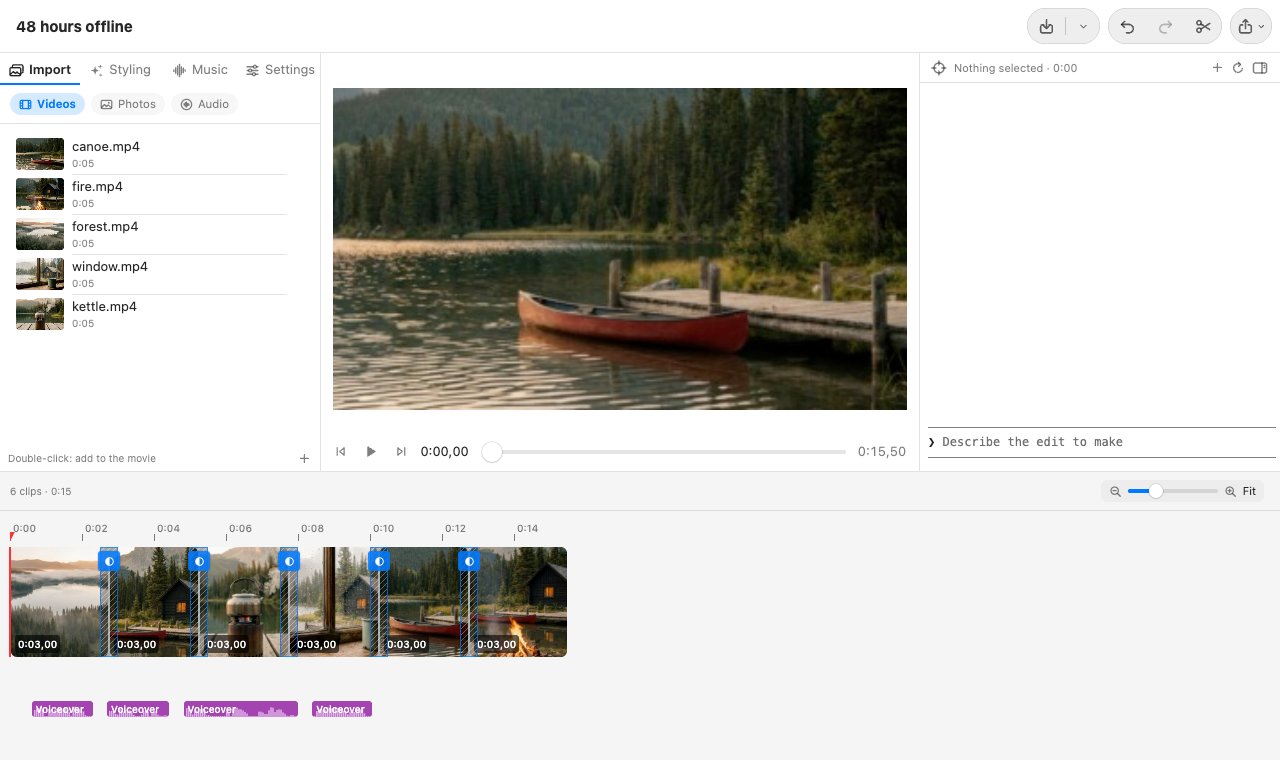
A voice-over from your script
Write the script with one sentence per line. vidmini turns each line into a voice-over and places them one after the other on the timeline, in a single undo step.
The voice model runs on your Mac
You install it once from Settings, and the app shows its size before it downloads anything.
Claude Code can redo one sentence
Ask for a sentence to be replaced and only that sentence is generated again.
Music from the library
Ask for music and a track from the app’s music library is placed on the film.
From recording to demo
- 1
Bring your recording
Record your screen with the tool you already use. Create a film and drop the recording in. MP4, MOV and the other formats macOS reads are accepted.
- 2
Describe the edit
Open the Claude Code column and say what you want: cut the pauses, zoom in on the button, add a title. The timeline changes in front of you. Ask again to change it.
- 3
Add a voice
Write the script and generate the voice-over.
- 4
Export
Export an MP4 in H.264 or HEVC. Exporting asks you to sign in with a Google account.
What it does not do yet
vidmini does not record your screen as a feature we present. Screen recording is built into the app, but we have not yet made it work on a real film: you bring a recording made elsewhere.
Automatic subtitles and a brand kit (colours, font and logo applied to titles) are in the same state: built, not yet tested by us on a real film.
The demos on this page replay edits made in the development build of the app, on real films.
Questions
Does vidmini record my screen?
Not as a feature we present. Screen recording is built into the app, but we have not yet made it work on a real film. Record with the tool you already use and import the file.
Which files can I import?
MP4, MOV and the other formats macOS reads.
Do I need Claude Code?
Yes. vidmini runs your own Claude Code in a column next to the viewer. Its settings, your account and its permission prompts stay yours. If it is missing, the column says so and tells you what to do.
Which Mac do I need?
A Mac with Apple silicon, running macOS 26 or later.
What file do I get?
An MP4 file, in H.264 or HEVC. vidmini checks the file before delivering it. Exporting requires being signed in with a Google account.
What does it cost?
See the pricing page: this page does not state a price.
Try it on your next demo
vidmini installs with one command in Terminal.