Variable Frame Rate in Video: What It Is and Why Audio Can Drift
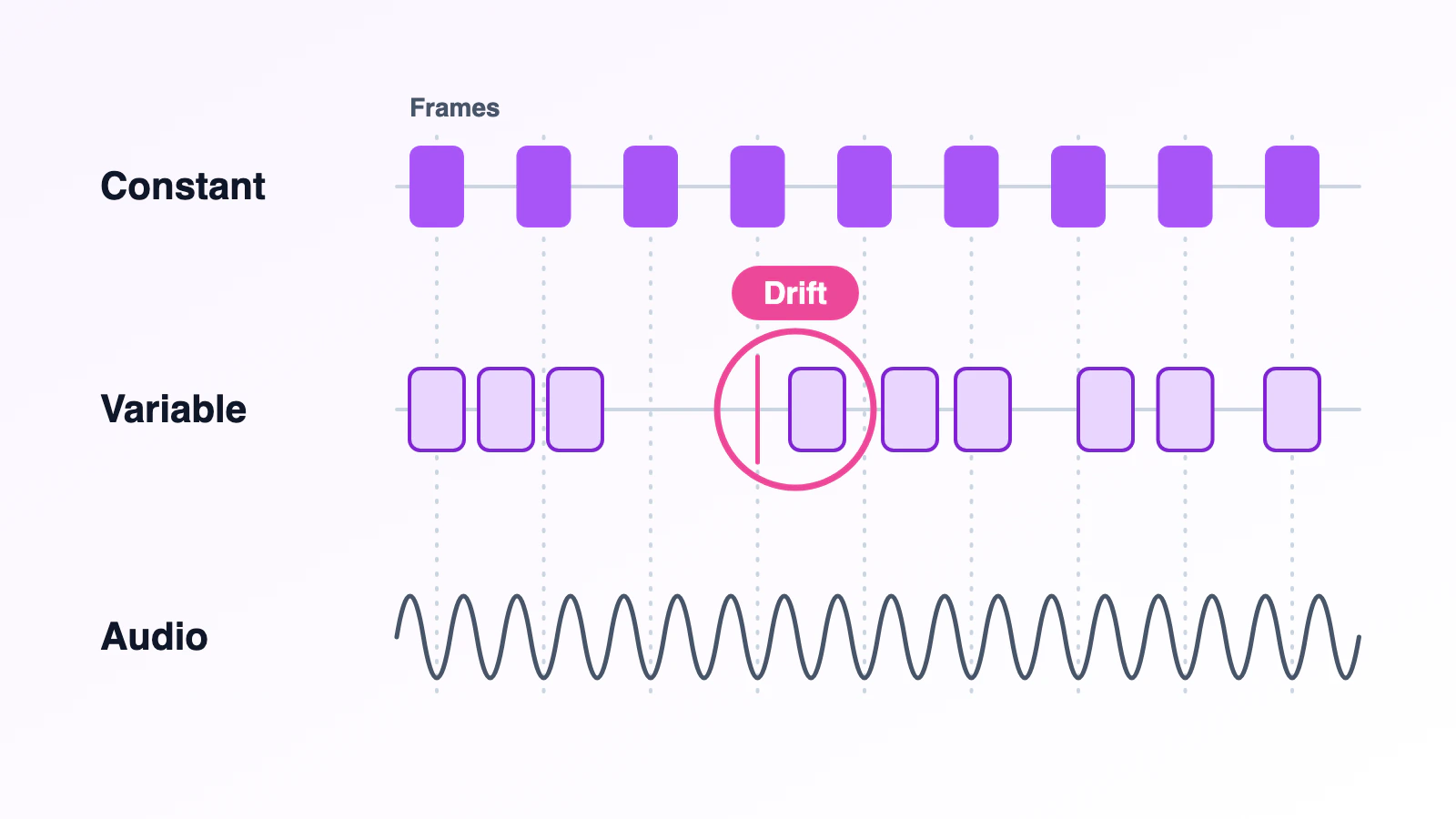
What Is Variable Frame Rate in Video?
A video has a variable frame rate (VFR) when its frames are not all shown for the same length of time. With a constant frame rate (CFR), every frame lasts exactly as long as the next. Apple's QuickTime file format stores this as a flag: 0 if all video frames have the same display duration, 1 if any vary.
Your screen recording plays fine in the player. On the editing timeline, your voice drifts away from the clicks.
Frame rate is the number of still pictures shown every second, counted in frames per second (fps). Played in a row, like a flip book, they add up to motion. So there are two different types of frame rates: constant and variable.
Variable refresh rate (VRR) is something else: a feature of monitors and game consoles, not of a video file.
Does Frame Rate Matter in Videos? Audio Can Drift in an Editor
It matters most once the clip lands on a timeline. People who edit phone clips and screen recordings describe the same symptom: the sound slides away from the picture while the clip plays.
An editing timeline counts time in frames of equal length. A file whose frames have uneven durations doesn't fit that grid exactly, and the gap can show up as drift.
Where does VFR come from? Some phones and screen recorders can save frames at uneven intervals.
Apple's iPhone User Guide gives an example: Auto FPS can lower the recording frame rate to 24 fps in low light. That page doesn't say the file becomes variable, but it shows a device can change its rate on its own.
So check your own file instead of assuming.
How to Check Whether a Video File Has a Variable Frame Rate
To check, use MediaInfo, a free app that lists a file's technical details. Open the file, go to the Video section and read the line called Frame rate mode. It says Constant or Variable.
Treat Variable as a strong hint: it's not proof. Some users report false alarms on files that HandBrake had encoded at a constant rate.
How to Convert Variable Frame Rate to Constant Before You Edit
Changing the frame rate means encoding the file again at a single fixed rate. You can use either of two free tools for this.
In HandBrake, set the frame rate to Same as Source and pick Constant Frame Rate. Its documentation on frame rates says HandBrake then detects the source rate and makes any variable portions constant at the same rate.
With FFmpeg, the command-line tool, add -fps_mode cfr and the rate you want:
ffmpeg -i recording.mov -fps_mode cfr -r 30 recording-cfr.mp4
FFmpeg's documentation says frames are then duplicated and dropped to reach exactly that constant rate. Either way, you get a new, re-encoded copy, and the original stays as it was.
The fix isn't guaranteed. Some users report audio that still drifts after the conversion. Play the converted clip to the end, not just the first minute: no check replaces your ears.
Choosing the Right Frame Rate for the Constant Copy
To choose the right frame rate, start from your edit. If you're working in a project with a set rate, pick that one. Otherwise, Same as Source keeps the rate HandBrake detects in the file.
Asking for a higher frame rate than the source repeats frames. A lower frame rate drops them. Neither adds visual detail, so higher frame rates only look smoother when the recorder captured those frames.
For reference, HandBrake's documentation lists a frame rate of 24 fps for film, and 30 fps or 60 fps for North American broadcast.
Where vidmini's Converter Fits, and Where It Doesn't
vidmini's video converter works in your browser, and nothing is uploaded. It changes the container (the file type, like MOV or MP4) and the codec (how the picture is compressed).
An H.264 MOV with AAC audio is copied into MP4 without re-encoding. Other files are re-encoded to H.264 video and AAC audio in MP4.
It has no setting for the rate, and we haven't tested whether its output is constant. Don't count on it to fix drifting audio.
But it does solve the other import problem: an editor that refuses the file type. In that case, convert a video to MP4 in your browser.